
GigaTribe allows you to easily share folders from your hard drive with other users. When the content of these folders is modified (files added, deleted, or changed), GigaTribe must detect these changes to synchronize updates with other users.
To detect modifications, GigaTribe regularly scans all shared folders. However, when the number of folders is very large, this scan can take time and impact your device’s performance.
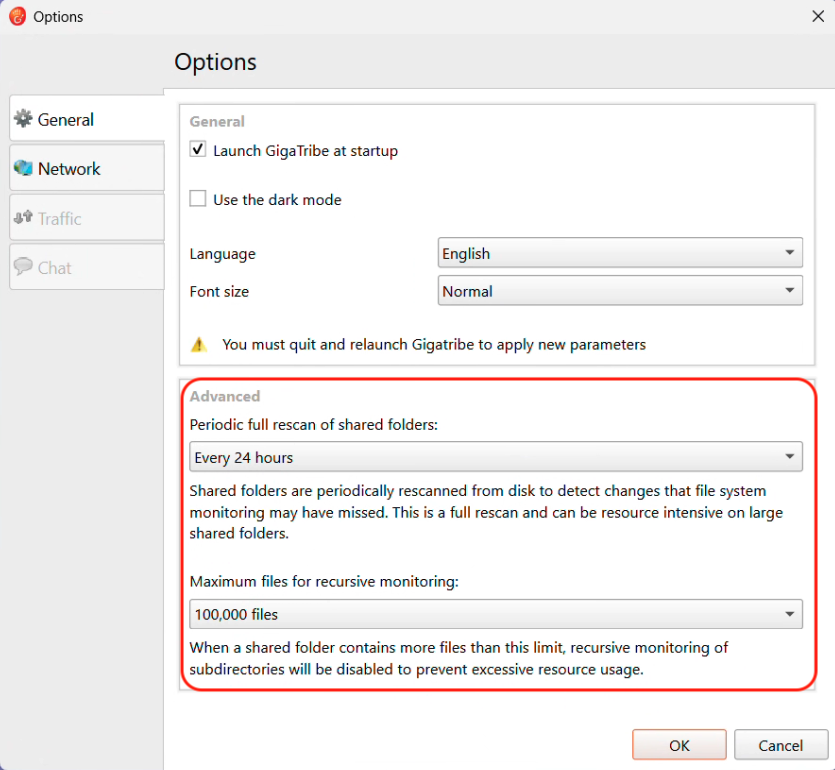
To optimize this detection and avoid overly frequent scans, you can adjust the scan frequency of shared folders yourself.
Where and how to adjust the scan frequency?
- Open the Options menu in GigaTribe.
- Go to the General tab, Advanced section.
Force a Manual Scan
If you want to synchronize a shared folder immediately without waiting for the next scheduled scan, you can manually trigger the scan:
- Select the relevant shared folder in the GigaTribe interface.
- Click “Rescan folder”.
This action initiates an immediate scan of the selected folder, ensuring that the latest changes are detected without delay.